
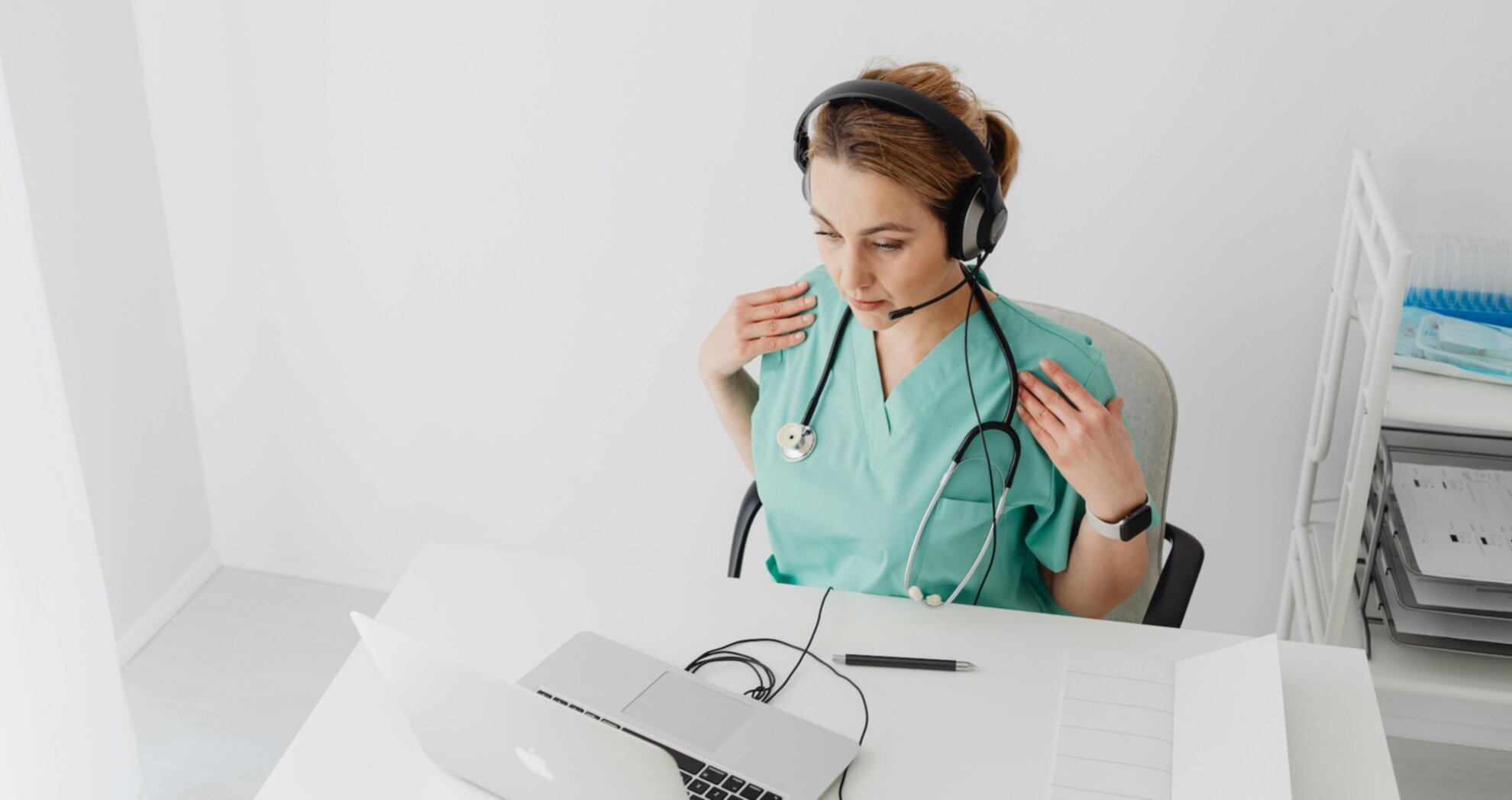
Remote work is a great opportunity to connect with other professionals outside of your immediate geographic region, but with online meetings comes challenges, namely audio quality. Crackling microphones, interruptions, or irritating echoes – all of these nuisances are more than just distracting, they can make you look unprofessional. Moreover, poor audio quality can cause confusion, delays, and loss of customers. Although there are a number of quick tips on how to improve online meeting audio quality, such as “buy a headset” or “mute your microphone when you’re not speaking,” in this article we’ve decided to take it a step further.
Below we’ll discuss professional-grade microphones, smart acoustic treatments, software noise suppression, and troubleshooting tips to help you take your online meeting audio quality to the next level.
The Importance of Noise Reduction for Online Professionals
Clear sound is an essential element of professionalism. When clients, coworkers, or investors are forced to strain to hear your message, they’re less likely to pay attention or take your ideas seriously. In addition, studies have shown that background noise and audio distortion raise cognitive load, making it harder for your listeners to understand what you’re saying and remember the information you shared.
Today, in a world of online meetings, webinars, and video calls, professional online meeting audio is an important tool that can help you to stand out from your competitors. If you run webinars, make sales pitches, or take Zoom calls on a daily basis, it’s important to focus on audio quality as much as you do on video quality.

The Physics of Sound in Your Home or Office
Sources of Unwanted Sounds
As you may already know, not all the noises that come from your workspace are easy to eliminate, such as a barking dog or a passing truck. Remote workers should also pay attention to these obvious sounds:
- HVAC systems or ceiling fans
- Sound reflection from hard-surfaced rooms which cause echo
- Keyboard clicks and mouse taps
- Electrical noise or the buzz of a microphone
- Speaker feedback from a misplaced audio setup or wrong volume settings
None of these noises are a nuisance by themselves but when combined, they can clutter your audio and make your online meetings sound less clear.
The Physics of Sound in Rooms
Two acoustic principles that will help you reach your sound goals are:
- Reflection: Sound waves that are reflected from hard surfaces, like windows or bare walls, to create an echo effect.
- Absorption: Energy that is converted to heat when absorbed.
Soft and porous materials, like rugs, fabric wrapped panels, PET Poly Max panels and curtains, can reduce noise reverberation. In addition, room size and shape can have an impact on the physics of sound in a room. For instance, the more irregular your room is, the more the sound will disperse. Rooms with square or rectangular proportions tend to have more echo.
For a deeper explanation of how reflection and absorption work, see Acoustic Geometry’s guide on the difference between soundproofing and sound absorption.
Hardware That Can Help You Reduce Noise in Online Meetings
Microphones for Remote Work
The right microphone choice is one of the most important parts of a professional remote work audio setup, since not all microphones are suitable for remote work. Here are a few guidelines to help you choose the right one for your audio needs:
- Dynamic Mics: Excellent for noisy spaces and are less sensitive to sounds coming from far away.
- Condenser Mics: Provide crisp and detailed audio reproduction, but are more likely to capture background noise. They’re ideal for quieter rooms with minimal noise.
- Cardioid and Supercardioid Mics: Best suited for picking up voices in an open area while minimizing room noise, making them an ideal choice for video conferences. This type of mic can also act as a reliable headset alternative audio setup, offering clear sound without bulky gear.
Small Things That Make a Difference
Accessories can also play a big influence on sound. Here are some you should be aware of:
- Pop Filters: Help avoid popping sounds (“p” and “b” sounds)
- Shock Mounts: Prevent vibrations caused by typing, desk movement, or foot tapping from traveling through the microphone
- Isolation Shields: Prevent reflections from the rest of the room
- Microphone Stands: Allow you to position the microphone in a more convenient place and avoid knocking it over.
Audio Interface or Mixer Settings
If you use an external audio interface:
- Set the Microphone Gain: If it’s too high, your microphone may pick up a lot of background noise, if it’s too low, you’ll not hear anyone speaking.
- Engage the High-Pass Filter: If your microphone is also picking up rumbling noise from HVAC systems or desk vibrations, this can help.
- Create Custom Presets: Presets make it easier to recall the best mic settings for Zoom, for consistent sound in every meeting.

Computer and Software Settings for Noise Reduction
Operating System Settings
- Windows: Windows has built-in options like mic boost, noise suppression, and spatial sound (although using the mic boost setting may actually make distortion worse).
- Mac: Mac input volume and ambient noise reduction settings can help to reduce microphone background noise without using third-party apps. These built-in tools provide a solid first step for microphone background noise reduction without the need for extra software.
Meeting Platform Tools
Zoom, Microsoft Teams, and Google Meet all have built-in software noise suppression settings. Each platform’s built-in noise suppression software helps reduce everyday disruptions like typing or household noise:
- Zoom: Zoom’s background noise suppression feature automatically adjusts itself, but it may also compress the audio, making it less suitable for musicians and podcasters.
- Microsoft Teams/Google Meet: Effective for normal voice but may interfere with high-end microphones.
Tip: If you’ve invested in professional equipment, try turning off suppression to see if the sound is cleaner without it.
Using Professional Audio Software
For users seeking more advanced options, consider:
- OBS and VST Audio Plugins: Both allow you to fine-tune your audio using filters
- Krisp and NVIDIA Broadcast: These AI-driven tools are especially effective when you need to eliminate echo in video calls without modifying your room setup. Both require a powerful GPU or can be cloud-based, so it’s important to be aware of system requirements.
Common Mic and Speaker Problems and Solutions
Practical audio troubleshooting for webinars and meetings can save you from last-minute stress. For example, if you need to remove static from your microphone, start by checking cables, drivers, and potential interference sources. Use headphones or move your microphone away from speakers for quick speaker feedback elimination. To help you with additional problems, we’ve prepared this table with quick fixes.
| Problem | Quick Fix |
| Mic buzzing | Check cable quality, avoid power strip interference |
| Speaker feedback | Use headphones or reposition the mic away from the speakers |
| Static or crackling | Swap USB ports, replace cables, or update drivers |
| Low volume | Adjust mic gain settings, check OS input levels |
| Background noise | Add rugs/curtains, use directional mics, enable suppression |
| Audio dropouts in webinars | Close unnecessary apps, ensure stable internet |
Noise-Proofing Your Workspace
Creating home office sound isolation is one of the most effective ways to control noise during online meetings. Below are some helpful tips to teach you how to do that.
Affordable Acoustic Treatment Solutions
You don’t need a home studio budget to achieve professional-grade soundproofing of your home office. Even if you can’t block out every distraction, you can dramatically reduce it with tailored acoustic treatment for small rooms such as these:
- Carpets, rugs and drapes to help absorb sound reflection
- Bookcases with random items act as natural diffusers
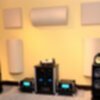
- Wall-mounted, fabric wrapped panels to target acoustic absorption
- Echo Eliminator panels are inexpensive, non-flammable, and environmentally friendly
- Acoustic Wall Art for aesthetic and performance enhancement
If you rent a place to live or your workspace is flexible, choose non-permanent options, such as Aco-U-Stick panels.

Positioning Your Workspace
The position of your microphone and desk in your home office is just as important as the equipment itself. Avoid placing your desk in the room’s corner to prevent accentuating reflections. Instead, face a soft surface, like a curtain, instead of a window or bare walls. Hold your microphone 6–12 inches from your mouth and slightly at an angle. It’s always a good idea to test your equipment before starting your Zoom meeting or webinar.
Achieving Professional-Grade Audio
Good audio quality is the result of several small steps that come together to solve a problem. From isolating the sound of your home office to adjusting microphone gain settings, the best setups for virtual meetings are those that combine hardware, software, and acoustic treatments in an environment.
To sum up:
- Identify the sources of distracting noise in your home office or working space.
- Choose the right microphone and microphone pickup pattern for your needs.
- Use accessories and an audio interface to fine-tune the microphone and speaker settings.
- Use built-in and third-party noise suppression tools.
- Consider using acoustic treatment for your workspace to make it more sound-friendly.
Remember, the best way to improve virtual meeting sound is to combine hardware, software, and room treatment. With a well-isolated environment, you’ll no longer have to deal with any disturbances during virtual meetings, which will ultimately help maintain professionalism and keep your audience engaged.
If you need help with room acoustic treatment or product recommendations, contact us at Acoustic Geometry. We’d be happy to help your online meeting audio quality match the professionalism of your message.










Add comment
You must be logged in to post a comment.